

You don’t need better AI tools. You need a better AI setup.
Most people are using AI like it’s still 2023.
Quick chats. Random questions. No context. Default settings.
But here’s the truth: AI has evolved. Most researchers haven’t.
If you want to make AI work for your research—not just play with it—you need to treat it less like a toy and more like a teammate.
I am going to show you how in this post.
Not with a million tools. Not with some fancy plug-ins.
Just one powerful system, set up the right way. Minimal. Repeatable. Research-ready.
Here’s how you can start using AI effectively for your research right now:
Step 1: Choose Your System Wisely
The number one question I get asked at every conference —
“What AI tool do you use for research?”
And people are often surprised by my answer.
With hundreds of AI tools on the market, I mostly stick with one:
ChatGPT.
My MINIMALIST approach to AI in Research:
↳ I keep my AI toolkit simple.
↳ No fancy gimmicks or dozens of apps.
↳ Just one main tool that delivers: ChatGPT.

That’s not to say I haven’t explored.
As an AI enthusiast, I test almost every major AI tool.
Some have impressed me. Others didn’t.
I subscribe to ChatGPT, Claude, and Gemini. I test almost everything.
Some tools are impressive. Some… not so much.
If ChatGPT gives me a weak output, I’ll compare it in Claude or Gemini. But 90% of the time – I stay in ChatGPT.
Because when you’re trying to write a paper, solve a coding bug, or outline a grant—you don’t want to spend your time hopping tools.
You want to focus. And focus requires simplicity.
Think about it:
How many statistical tools do you actually use? One or two, right?
For me, it’s STATA and R. That’s it.
Same with AI.
The fewer tools, the deeper the mastery.
The deeper the mastery, the better the output.
So if you’re serious about bringing AI into your research workflow, pick one of these:
→ ChatGPT (GPT-4o)
→ Gemini (Pro 1.5)
→ Claude (Opus)
Yes, there are apps marketed as “AI for researchers.” I’ve tried them.
But truthfully? You’ll get more power and flexibility by learning how to prompt well in these foundational models.

(Source: adapted from Ethan Mollick)
These aren’t just chatbots anymore.
They’re researchers. Editors. Statisticians. Writing partners.
And for $20/month? You get multimodal reasoning, file uploads, citation tools, and code generation.
If you’re still on the free version, you’re not using the tool.
You’re using the demo.
Here’s how I use them
- ChatGPT-4o is my workhorse. I keep a window open all day. I use it for most mundane tasks. Whether its’s polishing my writing or improving the logic of my argument, this is where I start.
- Gemini 2.5 Pro when I’m working with Google Docs or Slides, or pulling from Gmail/calendar. It’s also my go-to for troubleshooting code in R or Stata. (I used to book $60–$80 consults with statisticians. Now I just ask Gemini. Same-day answers.)
- Claude Opus shines when I’m working with long documents. Think: 80-page grant drafts or protocol reviews. Claude is careful, calm, and very good at reasoning across context.
Pro tip: Most tools default to faster, less capable models.
Make sure you switch to the most powerful version manually.
Another tip – When I’m stuck, I rotate between models. For example, when troubleshooting complex code, I’ve run the same problem through ChatGPT, Claude, and Gemini. If one hits a wall, the others often find a path.
Step 2: Setting Your System Right
Before you start using AI for real research work, get your foundation right.
Privacy, personalization, and project setup—this is where it begins.
First: Adjust Your Privacy Settings
Even with de-identified data, privacy matters in research.
Here’s what most people don’t realize:
→ Claude does not use your data to train future models.
→ ChatGPT and Gemini might—unless you change the settings.
Let’s fix that first.
For Gemini
→ Go to: Settings → Activity
→ Then click Turn Off Gemini Apps Activity

For ChatGPT
→ Go to: Settings → Data Controls
→ Turn off “Improve the model for everyone”

→ Turn off “Improve the model for everyone”

This disables training without limiting functionality.
Next: Personalize Your AI Experience
There are 2 levels of personalization:
A. System-Level Personalization
In ChatGPT, click Customize ChatGPT.

→ Enable for new chats → Add basic info about who you are and what you’re working on

Why I don’t use this much:
My work spans roles—researcher, clinician, teacher.
Each with different goals, language, and context.
So I prefer something more flexible…
B. Project-Level Personalization (Recommended)
This is where things get powerful.
ChatGPT and Claude let you create projects—each with its own set of instructions and reference files.
Here’s how I use it:
1. Click “New project” in the sidebar

→ Name your project → Click “Create Project”

→ Add project-specific instructions

Example
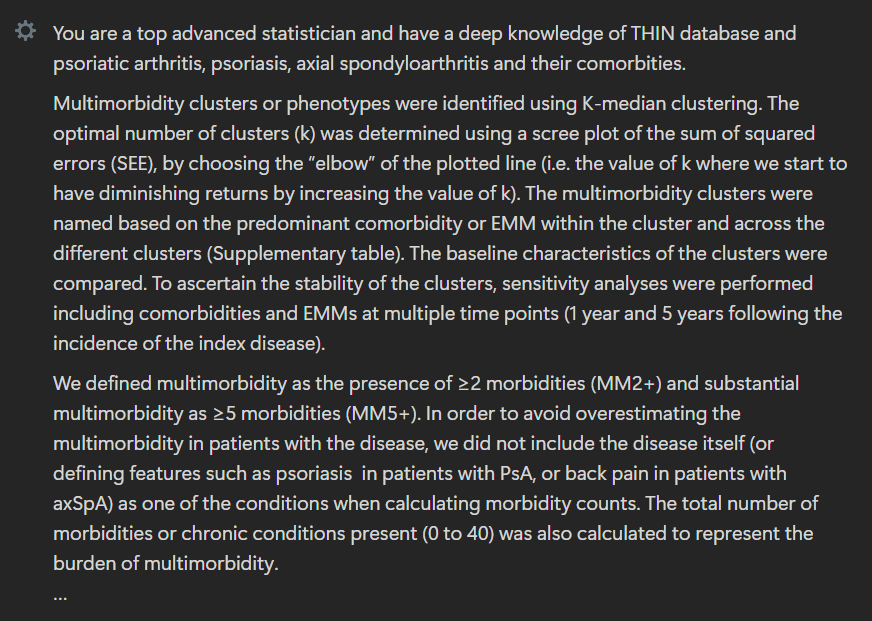
Let’s say I’m troubleshooting my code in Stata and R and interpreting results for a PsA project in the UK THIN database. My project instructions might look like this:
2. Upload your references
Click “Add files” in the project sidebar.
You can upload up to:
→ 20 files per project (ChatGPT Plus)
→ 40 files (Pro tier, $200/month)


3. Enable Memory (Optional but Helpful)
Click Settings → then open the Personalization tab.

Turn on:
- Reference saved memories
- Reference chat history
- Reference record history

It’s still evolving, but I’ve found memory helps with style, tone, and recall of past edits.
If you want a one-off chat with no memory, turn on “Temporary Chat” before you begin (right upper corner).

Step 3: Use Deep Research (Not Just Chat)
When I’m working in a new area—something just outside my domain, I don’t rely on surface-level AI summaries.
Instead, I use what I call deep research mode.
Here’s what that looks like in practice:
Previously, my go-to strategy was simple:
→ Find 3 recent review articles from top journals.
The problem with that is…
Those reviews might not answer the exact questions I have.
Or they’re outdated. Or too broad.
Deep research solves that.
Use AI to Synthesize Literature—Not Just Summarize It
Let’s say you’re writing the background section of a grant.
Or comparing treatment response across multiple trials.
Or investigating a biomarker’s role in disease diagnosis or prognosis.
Here’s what to do instead of asking “Summarize this paper”:
✅ Use Deep Research mode
✅ Upload PDFs or enable web search
✅ Ask for a structured synthesis
Example prompt:
“Give me a 500-word synthesis of key themes from these 6 papers with proper citations. Focus on differences in study design and outcome definitions.”
Where to Find Deep Research Mode
In ChatGPT
→ Click on Tools → Select Deep Research

In Gemini
→ Click on Deep Research

NOTE:
- If you are a standard Plus user for ChatGPT, currently you get to perform 25 deep research/month.
- Gemini offers a much generous number of Deep Research reports- 20 reports per day for Google One AI premium and few reports per month for free users.
- Google deep research reports have an additional advantage of directly downloading as a google doc (if that is what you prefer).
Although expensive, I do find that ChatGPT Deep Research is more focused and I like it more. But you need to use your credits wisely.
How I Actually Use It
- To get up to speed on an unfamiliar field (e.g., causal inference models or ML approaches in observational research)
- To analyze discrepancies across trials (e.g., differing PsA response rates with the same drug)
- To extract prevalence estimates from population studies side-by-side
Caveat: Still Requires Human Oversight
Deep research reports are more accurate than casual AI chat—but they’re not perfect.
- Check every citation.
- Verify quoted data.
- Compare across sources.
Still, it’s a huge improvement over juggling 20 PubMed tabs at 1 a.m.
This is not just faster.
It’s a better way to think.
Step 4: Work the Way You Think—Multimodal + Voice
Most people don’t know this:
You can talk to your AI like a colleague.
Not in some cheesy, voice-assistant way. I mean real-time coaching and brainstorming while walking, driving, or thinking aloud.
But for real-time coaching, problem-solving, and brainstorming—while walking, commuting, or thinking out loud.
That’s now possible.
Try Voice Mode in ChatGPT or Gemini
Just open the app on your phone.
→ Tap the microphone
→ Speak freely

No perfect grammar required.
It captures your intent surprisingly well.
Or Just Dictate Instead of Typing
You don’t need full voice mode to think aloud.
Tap the microphone icon next to the prompt box and dictate.

I actually prefer this method. It’s faster, more fluid, and feels like a collaborative whiteboard session.
How I Use This Mode
- To refine inclusion/exclusion criteria on the fly
- To talk through logic for labeling clusters in a phenotype study
- To review a grant outline before submission—while pacing around outside
Think of this like having your own research sounding board.
Your own Dr. Watson—if you’re the Sherlock type.
I don’t use AI to give me ideas. I use it to pull the best ideas out of me.
This isn’t futuristic anymore.
It’s just underused.
Step 5: Create varied outputs: Code, Documents (e.g., ppt), and Images
AI is not just for writing paragraphs or answering questions.
It can now help you generate:
- Slide decks
- Figures and DAGs
- Code snippets
- Tables and graphs
- Conceptual images for papers
And the best part is…
You can ask for all of these using plain language.
Image Generation
ChatGPT has the most reliable and controllable image tool right now.
Gemini uses two systems:
- Imagen (for static visuals)
- A newer multimodal image generator
Claude doesn’t generate images yet.
I’ve used ChatGPT’s image tool to mock up:
- Conceptual figures
- Journal cover art
- Schematic workflows
- Visual abstracts
No, these won’t be publication-ready.
But they’ll help you get started—and refine your thinking.
Example: Conceptual Figure for PsA Clinical Clusters
For a recent paper on PsA phenotype clusters, I gave ChatGPT (o3) this simple prompt:
"Provide a conceptual figure for my paper on the 3 different clusters we found in a ppt."
And it generated a downloadable PowerPoint with a clean, editable figure.

Is this perfect? No. (Obviously needs some formatting).
But it visualized an angle I hadn’t considered – and frankly I found it very innovative.
Tip: Use “Canvas” Mode for Richer Output
In ChatGPT or Gemini, enable Canvas (or equivalent) when you want the AI to:
- Run code
- Generate structured slides
- Create visual workflows
Claude, while it doesn’t do visuals, is excellent for structured document creation—like detailed tables or well-formatted PDFs.
Think Beyond Text
I often use AI to:
- Draft table shells
- Create mock slide decks
- Build simplified DAGs
- Translate code from R to Python or vice versa
- Generate visual metaphors to explain a method
The more you treat AI like a creative collaborator, the more useful it becomes.
Step 6: Learn Prompting by Doing
You don’t need to master “prompt engineering.”
But you do need structure.
The more clearly you frame your ask, the better the output.
Here’s the simple framework I use (and teach) to make prompting fast and effective:
The 5-Part PERSONAL GOAL Framework
→ Persona(l): Who should the AI act as?
→ Goal: What outcome are you aiming for?
→ Output format: What do you want back?
→ Avoid: What should it not do?
→ Lens of context: What background info should it consider?
Example
Persona: “Act as an expert NIH reviewer in [my field].”
Goal: “Give feedback on Aim 2 of my K23 grant.”
Output: “List 3 strengths, 3 weaknesses, and suggestions to improve clarity and feasibility.”
Avoid: “Don’t give generic advice. Focus on real NIH study section concerns.”
Lens of Context: “This is my second submission. Aims revised based on prior reviewer comments. I’m a physician-scientist focused on precision medicine in PsA. Here’s my aims page: [insert text]”
That prompt gets you a high-signal, well-structured, reviewer-like response—fast.
5 Additional Tips to Start Strong
1. Give context.
AI can’t read your mind.
Share background, PDFs, tables, blurbs—whatever helps.
Claude and ChatGPT can read uploaded files.
Gemini can pull from Gmail or Docs.
But I still prefer feeding context manually.
2. Be specific about your ask.
Instead of:
→ “Write a cover letter.”
Try:
→ “I’m applying for an academic rheumatology position. Here’s the job description and my CV. Write a 1-page cover letter emphasizing NIH funding, mentorship experience, and clinical strengths.”
3. Break it down.
Don’t throw the whole manuscript in.
Work step-by-step.
Start with one paragraph.
Ask for feedback on clarity, or logic, or tone—not all at once.
Example:
→ Instead of “improve clarity,” say: “Clarify how the mechanism of action connects to the primary outcome.”
4. Ask for volume.
AI doesn’t get tired.
Need 50 title options? Ask.
Want 10 ways to reframe a table? Ask.
Try your prompt across ChatGPT, Claude, and Gemini—and compare.
Chances are, one will surprise you.
5. Use branching.
All 3 models let you create branches when editing a past message.
Try a new angle—like:
→ “Now give this feedback from a patient-partner lens”
→ “Now rewrite for a different journal tone”
→ “Now revise like a statistical reviewer”
No need to start over.
Troubleshooting
⚠️ Hallucinations
Still happen—especially if you give vague instructions or use faster models.
Don’t trust citations blindly. Always check specific facts, references, and numbers.
⚠️ Make it a conversation
Ask “why?” Push for deeper reasoning. Request rewrites. You’re not using a vending machine.
⚠️ Check the logic
Click “Show reasoning.” It often reveals helpful structure—even if the conclusion needs work.
Use It on Real Work
Playtime is over. Time to apply it to something that matters.
→ Use the powerful model. Feed it a real problem. Add full context. Ask for a detailed output (e.g., response to reviewers, table format, discussion draft). Iterate until it works.
→ Try Deep Research. Pick a topic you’re preparing a manuscript or talk on. See how it handles synthesis, comparisons, or citations.
→ Turn on voice mode. Use it while walking or commuting. Brainstorm aims, outline papers, think aloud with feedback.
Most researchers still treat AI like search engines.
One prompt. One reply. Done.
But now you know better.
Use it with real documents. Ask better questions. Explore multiple outcomes.
The biggest difference between casual users and serious clinical researchers isn’t intelligence or tech skill.
It’s this:
↳ They’re not asking what the tool can do.
↳ They’re asking: “What can this tool help me do better—right now?”
What’s one thing you could try AI on today that you haven’t yet?
2 thoughts on “How to Start Using AI for Research Today: My Minimalist Approach for Maximal Impact (Without the Overwhelm)”
Thanks for sharing. It helps alot in future.
Glad it was helpful Syeda!